Dual-monitor imaging workstations address fundamental visibility constraints that limit diagnostic detail presentation, enabling vendors to deliver enhanced clinical value through improved workflow efficiency and reduced cognitive load in diagnostic interpretation tasks.
Dual-monitor workstations enable imaging vendors to present more diagnostic detail by eliminating viewport compression, enabling persistent context comparison, reducing cognitive switching overhead, and maintaining stable visual layouts that preserve image quality and clinical workflow efficiency across complex diagnostic tasks.
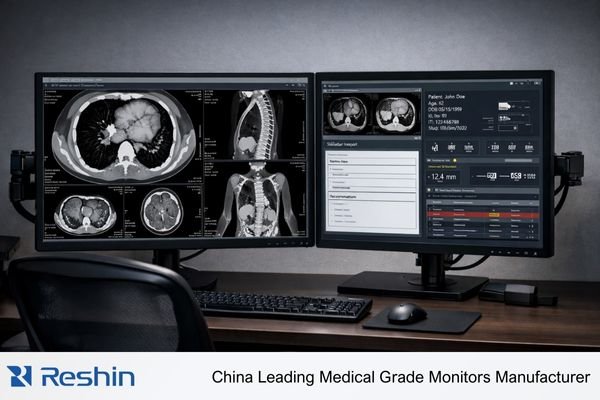
In my work supporting imaging workstation deployments at Reshin, I’ve seen that single-monitor constraints often dictate what clinicians actually notice—regardless of how strong the underlying reconstruction, visualization, or AI is. The bottleneck is not only screen size; it’s how UI panels and context windows compete with the diagnostic viewport and interrupt attention during comparison-heavy reads.
Dual-monitor configurations reduce that friction by protecting a stable, high-pixel imaging area while keeping “always-needed” context persistent: priors, reports, AI panels, measurements, and worklist information. With less layout churn and less panel toggling, clinicians spend more time interpreting anatomy and less time managing the interface—so vendor capabilities become easier to see and more likely to be used as intended.
To deliver consistent benefits, dual-monitor workstations should be treated as an engineered baseline1: role-based UI behavior, cross-screen calibration consistency, and acceptance tests that keep the experience stable through patient switching, software updates, and routine maintenance.
What diagnostic detail is lost on single-monitor imaging workstations?
Single-monitor imaging workstations force constant trade-offs between viewport size, contextual information access, and interface navigation that systematically reduce the effective diagnostic detail available to clinicians during interpretation tasks.
Single-monitor workstations lose diagnostic detail through viewport compression caused by interface panels, interrupted attention from constant layout switching, memory-dependent comparison workflows that increase error risk, and annotation occlusion that forces users to choose between measurement visibility and anatomical detail.
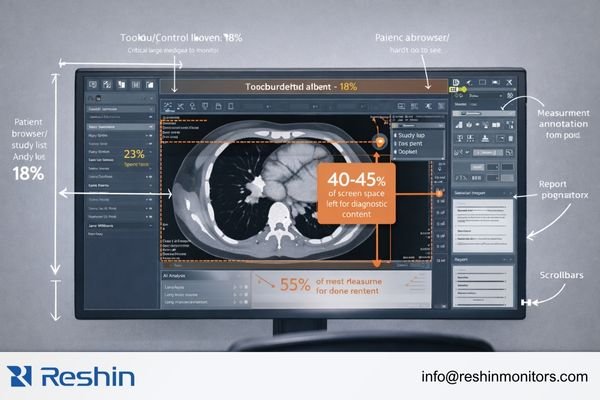
From my experience analyzing imaging workstation utilization patterns, the limitation is usually a visibility trade-off, not the raw quality of the image data. Clinicians on single-monitor setups repeatedly balance diagnostic viewport size against access to priors, measurements, AI outputs, and clinical documentation.
In multi-modality reading, single-screen interfaces force the imaging viewport to compete with toolbars, panels, and navigation elements. That predictably reduces effective pixels right when the reader needs the most area for fine correlation, careful zooming, and measurement.
The real productivity and accuracy penalty comes from switching. When readers must repeatedly swap series, restore layouts, and open/close panels, comparisons become sequential and memory-dependent. This raises cognitive load2 and can be tracked with practical indicators such as layout toggles per case, time-to-restore preferred hanging protocols, and how often the viewport is meaningfully reduced during detailed review.
Interface Panel Competition and Viewport Compression
Interface elements including measurement tools, hanging protocols, prior study lists, and AI output panels reduce available diagnostic viewport area. This lowers the effective detail clinicians can perceive—especially in zoom-and-measure workflows—regardless of how strong the underlying image quality is.
Sequential Comparison Limitations and Cognitive Overhead
Multi-window correlation becomes memory-based when constant switching is required for comparison activities. This sequential approach increases interpretation time, reduces comparison accuracy, and contributes to fatigue across extended reading sessions. Contact info@reshinmonitors.com to map your current viewport loss and switching overhead into a dual-monitor baseline and acceptance criteria.
How do dual-monitor layouts reduce cognitive load and improve comparison accuracy?
Dual-monitor configurations enable parallel information presentation that eliminates switching overhead while preserving dedicated diagnostic viewport space for detailed image interpretation and measurement activities.
Dual-monitor layouts reduce cognitive load by enabling persistent context visibility, eliminating interface switching interruptions, supporting simultaneous multi-sequence comparison, and maintaining stable viewport dimensions that preserve diagnostic detail throughout complex interpretation workflows.
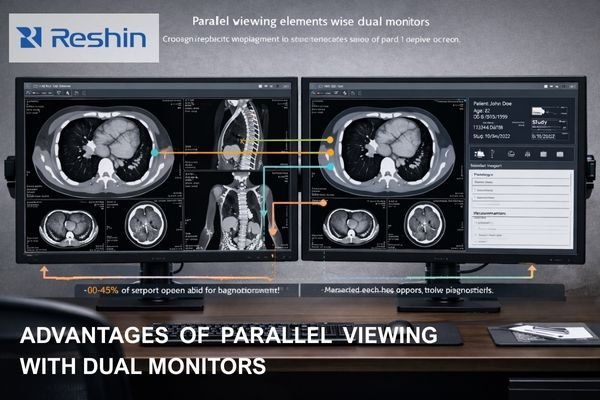
The cognitive benefits of dual-monitor configurations3 come from parallelism: essential context remains visible without shrinking or destabilizing the primary diagnostic viewport. Instead of “navigate to find information,” readers get persistent access while keeping the image central.
A common allocation is simple and effective: the primary screen is for the diagnostic viewport and direct interaction (zooming, measurement, sequence navigation), while the secondary screen anchors reports, priors lists, key image galleries, AI analysis panels, structured measurement tables, and worklist context. That reduces interruption frequency and keeps the primary viewport consistently large—so detail inspection stays continuous.
Comparison accuracy improves because multiple series, time points, or processing states can remain visible during the read. Follow-ups and multi-sequence correlation become direct visual tasks, not “compare-now, remember-later” cycles. For vendors, this makes advanced features more usable: AI prompts can stay visible without covering anatomy, and measurements can remain accessible without shrinking the image.
Which imaging workflows gain the most diagnostic detail from dual monitors?
Comparison-intensive, information-dense, and overlay-heavy imaging workflows demonstrate the greatest diagnostic detail improvements from dual-monitor configurations, with specific clinical applications showing measurable efficiency and accuracy benefits.
Multi-sequence MRI interpretation, multiphase CT analysis, vascular studies, oncology follow-up examinations, emergency triage workflows, consultation activities, and AI-assisted detection tasks gain significant diagnostic detail benefits from dual-monitor configurations through improved comparison capabilities and reduced interface navigation overhead.
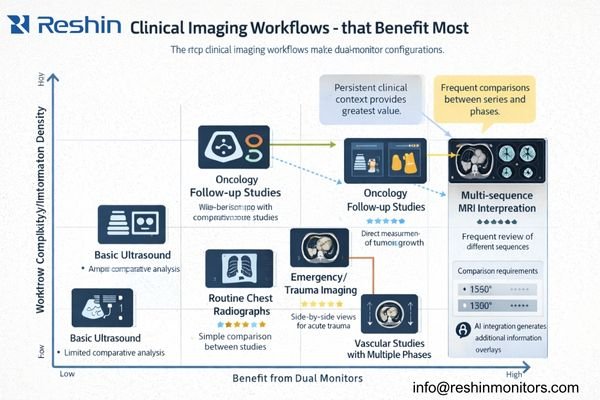
Dual-monitor benefits are not uniform across all applications. The largest gains appear where interface constraints directly suppress diagnostic detail: reads that depend on side-by-side comparison, tasks that require persistent clinical context, and workflows where overlays and measurements must coexist without obscuring anatomy.
Comparison-heavy interpretations—multi-sequence MRI, multiphase CT, vascular studies, and oncology follow-ups—benefit because correlation is continuous throughout the read. Information-dense workflows (emergency triage, consultation, MDT) benefit because context stays visible without shrinking the image. Overlay-heavy workflows benefit because analytical controls can move off the viewport while AI outputs remain accessible.
For imaging vendors, these categories are ideal candidates for default dual-monitor hanging protocols and role presets, so the “detail benefit” becomes repeatable in demos and deployments.
| Workflow Category | Primary Benefits | Implementation Priority | Typical Setup |
|---|---|---|---|
| Multi-sequence MRI4 | Simultaneous T1/T2/FLAIR comparison | High | Primary: current series, Secondary: comparison sequences |
| Oncology follow-up | Longitudinal change assessment | High | Primary: current study, Secondary: baseline images |
| Emergency triage | Rapid context access with image review | High | Primary: imaging viewport, Secondary: clinical information |
| Vascular studies | Phase correlation and measurement | Medium | Primary: angiographic images, Secondary: quantitative analysis |
| Consultation reviews | Teaching and collaborative interpretation | Medium | Primary: diagnostic images, Secondary: discussion materials |
| AI-assisted detection | Algorithm output review with context | Medium | Primary: annotated images, Secondary: AI analysis panels |
Information-dense workflows benefit from maintaining clinical context while reviewing studies. Overlay-heavy workflows gain particular value because the workstation can separate analytical controls from anatomy, preserving image clarity while keeping computational assistance persistent.
How should vendors implement dual-monitor UI design and calibration consistency?
Successful dual-monitor implementation requires systematic engineering of user interface behavior and display calibration protocols that ensure consistent visual presentation and stable workflow patterns across both display surfaces.
Effective dual-monitor implementation combines stable role-based UI allocation, cross-screen calibration consistency, systematic layout restoration capabilities, and comprehensive validation procedures that ensure diagnostic detail presentation remains reliable and repeatable across diverse clinical environments and usage patterns.
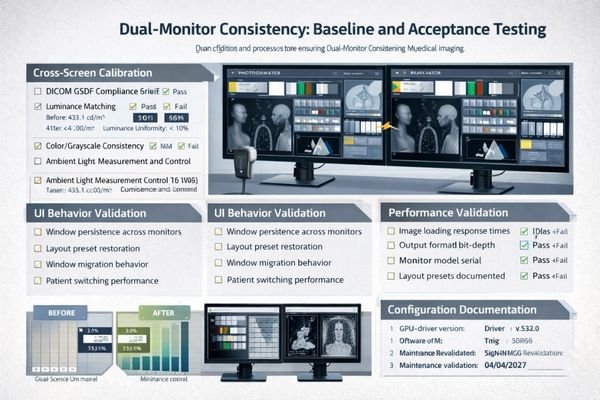
Dual-monitor deployment should be engineered as a complete system, not treated as a simple hardware add-on. The two failure points that most often undermine value are unstable window behavior and cross-screen visual mismatch5.
On the UI side, define a clear role split and enforce it. The primary monitor should preserve the diagnostic viewport and core tools, while the secondary monitor anchors persistent context panels. Layouts should be recoverable via one-click presets, and role-based defaults should ensure reading, QA review, and teaching behave predictably.
On the display side, cross-screen mismatch (“one looks brighter or flatter”) erodes trust and reduces comparison quality. Align grayscale response, luminance targets, and ambient assumptions, and control workstation output policies that often break baselines in practice: consistent RGB output (avoiding unexpected YCbCr conversions), bit-depth preservation, disabling unnecessary enhancements, and preventing OS/application adjustments from silently shifting contrast.
Acceptance testing should be recordable and repeatable: deterministic window placement, layout restore reliability, patient switching performance, power-cycle recovery, and re-validation after software/driver updates. Document configuration essentials (layout preset/version, GPU/driver version, output format/bit depth policy, luminance targets, ambient lighting notes, and recovery timings) so the baseline can be re-proven after changes.
Reshin diagnostic monitor recommendations for dual-monitor workstations
Dual-monitor workstation success requires careful selection of display models that provide consistent calibration characteristics, reliable performance, and systematic quality assurance capabilities across both primary and secondary viewing roles.
When evaluating displays for dual-monitor imaging workstations, I focus on a primary diagnostic baseline paired with consistent secondary context support. Reshin’s diagnostic monitor portfolio supports this approach through calibration validation, stable performance, and engineering practices that enable sustainable fleet management across different rooms and sites.
For primary diagnostic applications requiring strong baseline stability, the MD33G is a reliable choice for the core read and the most critical comparisons. Pairing it with the MD32C supports consistent grayscale response and luminance behavior while allowing the secondary display to carry persistent context (priors, reports, AI panels) without undermining cross-screen credibility.
For balanced deployments where standardization and cost control matter, the MD26GA and MD26C pairing supports scalable rollout with simplified QA routines. For collaborative review and teaching environments, the MD45C can serve as a shared reference display that complements standard diagnostic workstations.
| Primary Role | Secondary Role | Recommended Combination | Key Advantages |
|---|---|---|---|
| Critical diagnostic reading | Persistent context | MD33G + MD32C | Baseline consistency for comparison-heavy reads |
| Standard diagnostic reading | Reports and AI panels | MD32C + MD26C | Stable workflows with controlled fleet cost |
| High-volume reading | Workflow support | MD26GA + MD26C | Scalable deployment and simplified QA cadence |
| Collaborative review | Shared reference | Standard workstation + MD45C | Shared visibility for consultation and teaching |
| Training environments | Educational support | MD32C + MD26C | Repeatable layouts for structured learning |
FAQ
Do dual monitors improve diagnostic accuracy or mainly workflow efficiency?
Dual monitors most directly improve workflow efficiency by reducing switching overhead and cognitive load. Diagnostic accuracy benefits tend to be indirect: comparisons are less memory-dependent, fatigue is reduced, and clinicians can keep more relevant information visible without shrinking the diagnostic viewport. A practical way to evaluate impact is to measure switching frequency per case, time-to-restore preferred layouts, and reading time variance before and after deployment.
What’s the best way to split image viewing and reports/AI panels across two screens?
A reliable split keeps the primary monitor dedicated to the diagnostic viewport and core interaction tools, while the secondary monitor anchors persistent context such as priors, reports, worklists, AI panels, and structured measurement tables. Stability matters: the same functions should stay on the same screen across cases.
How do we keep grayscale and brightness consistent between the two monitors?
Consistency requires controlled targets and verification: align grayscale response and luminance targets, keep ambient assumptions stable, and enforce consistent workstation output policies (RGB output and bit-depth preservation). Verification should include instrument checks and simple cross-screen consistency checks to detect drift early.
When should a dual-monitor setup use identical models versus mixed models?
Identical models simplify calibration consistency, spare parts, and long-term fleet maintenance—especially when cross-screen comparison is common. Mixed models can work when roles are clearly separated, but only if the secondary display maintains stable grayscale appearance and does not introduce obvious mismatch.
What acceptance tests prove a dual-monitor workstation is stable before go-live?
Acceptance should cover cross-screen consistency verification, deterministic window behavior, layout restore reliability, patient switching performance, power-cycle recovery, and re-validation after software/driver updates. Document configuration details and recovery timings so the baseline can be re-proven after changes.
Conclusion
Dual-monitor workstations unlock diagnostic detail by removing the constant trade-off between viewport size, context access, and interface navigation that single-screen setups force. With parallel layout, clinicians reduce switching interruptions, keep a larger effective imaging area, and compare sequences and follow-ups more reliably—making vendor reconstruction quality, visualization tools, and AI prompts easier to see and trust.
When vendors engineer role-based UI rules, cross-screen consistency, and acceptance cases into a repeatable baseline, dual monitors become more than “an extra screen”—they become a scalable way to present diagnostic detail with predictable behavior. Contact info@reshinmonitors.com to standardize your dual-monitor workstation baseline and demo-ready layouts.
✉️ info@reshinmonitors.com
🌐 https://reshinmonitors.com/
-
Learn about the importance of an engineered baseline for consistent performance in imaging workstations. ↩
-
Exploring cognitive load can provide insights into optimizing reading environments for better clinical outcomes. ↩
-
Explore this link to understand how dual-monitor setups enhance productivity and cognitive function in various tasks. ↩
-
Explore this link to understand how Multi-sequence MRI enhances diagnostic accuracy and efficiency in medical imaging. ↩
-
Understanding cross-screen visual mismatch is crucial for optimizing dual-monitor setups, ensuring consistent visual quality and user trust. ↩