In my experience supporting diagnostic workstation installations, I’ve observed unexpected softness and inconsistent sharpness across PACS viewing stations that trace back to OS display scaling settings creating hidden resampling between viewer applications and monitor outputs.
OS display scaling affects PACS viewing by introducing resampling between application rendering and final display output, potentially breaking 1:1 pixel mapping even when PACS viewers report "100%" zoom. This scaling can soften edges, alter noise texture, and create inconsistent diagnostic presentation across workstations with different scaling configurations or DPI settings.
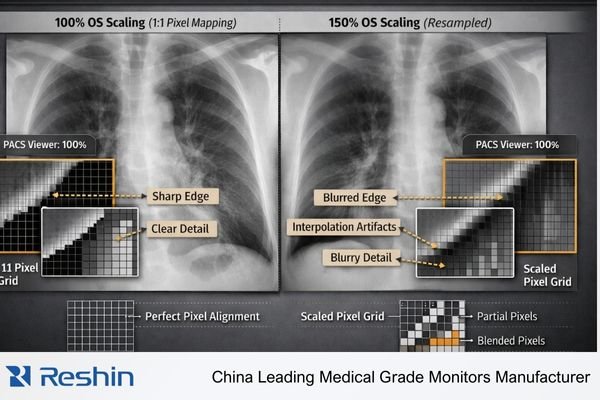
From my work with PACS integrators, scaling-related issues often show up as subtle sharpness differences that radiologists notice when switching between workstations. The underlying cause is usually not panel performance, but configuration drift1 in the rendering pipeline—where OS scaling, GPU output behavior, or monitor processing introduces interpolation without anyone realizing it. The practical fix is to treat scaling as a controlled configuration item with validated profiles, repeatable verification, and clear recovery steps after updates or maintenance.
How Does OS Display Scaling Work and Where Does It Touch PACS Rendering?
Understanding scaling mechanisms helps identify where diagnostic image quality can be affected.
OS display scaling changes pixel mapping from application content to the final framebuffer sent to GPU output, often resampling UI and image surfaces to improve readability on high-DPI screens. For PACS viewing, this creates potential resampling of diagnostic images before they reach the monitor, even when viewers report "100% zoom," affecting edge crispness and noise texture.
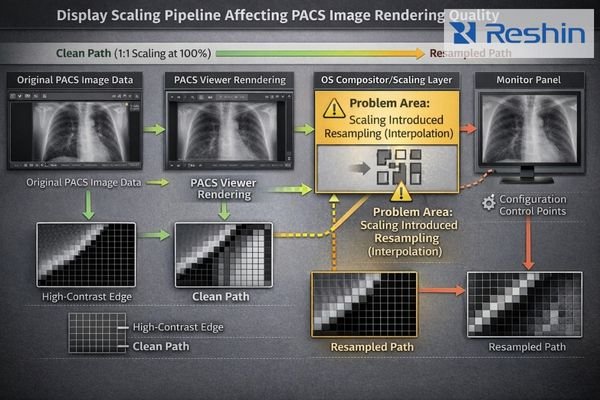
Scaling behaves like an invisible layer between the PACS viewer and the final signal that reaches the diagnostic display. A station can look “correct” at a glance—native resolution selected, viewer set to “100%,” and images seemingly sharp—while the OS compositor still rescales application surfaces to match desktop DPI preferences. That resampling may be subtle, but it changes how pixels are represented downstream and can shift perceived edge definition and noise texture. The result is inconsistent diagnostic presentation across stations that should be identical, especially when different OS profiles, DPI settings, or user preferences are applied.
Application-Level Rendering
PACS viewers2 render images according to internal zoom and window/level logic, but that output is still a drawable surface inside the desktop compositor. If the application surface is rasterized at a scaled DPI or resized by the OS before composition, the viewer can report “100%” while the OS is still resampling pixels to fit the scaled desktop. That disconnect is why “viewer zoom” is not the same as end-to-end pixel mapping.
Desktop Environment Processing
OS scaling is designed to keep text and controls readable on high-DPI screens, so the compositor may resample application surfaces during desktop composition. For diagnostic imaging, the downside is gray blending on pixel-level features, softened high-contrast edges, and subtle changes in perceived noise texture. These effects often become obvious only when comparing workstations side-by-side or when a reader switches stations and describes one as “softer.”
GPU Output Pipeline
Even if OS settings look consistent, the GPU can still introduce scaling if output timing is not truly native or if driver defaults apply a “fit” policy. Non-native resolution selections, unexpected refresh/timing choices, or driver-level scaling can add another interpolation step after OS composition. That is why scaling control must be end-to-end: OS, GPU, and monitor behavior all need to align to preserve predictable pixel behavior.
When Does Scaling Break 1:1 Pixel Mapping and Perceived Sharpness?
Identifying scaling-induced pixel mapping problems helps target diagnostic quality control efforts.
Scaling breaks true 1:1 pixel mapping when displayed images are not presented at native desktop scale and native output timing, forcing interpolation between image pixels and physical panel pixels. This occurs with OS scaling above 100%, GPU aspect-fill processing, or monitor zoom features, creating gray blending on single-pixel features and reducing line-pair visibility.
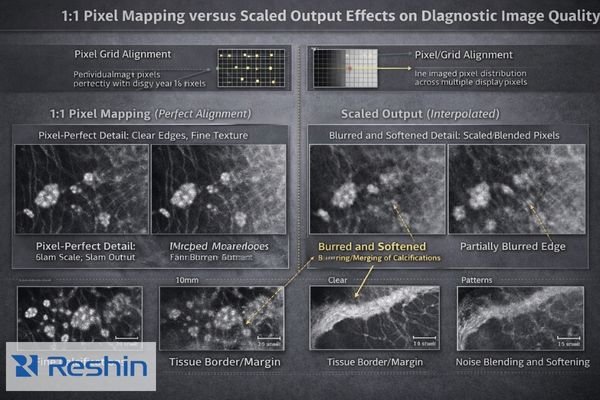
In diagnostic reading, 1:1 mapping is an end-to-end property, and OS scaling3 is one of the most common hidden breakpoints. Even small scaling ratios can introduce interpolation artifacts that are easy to miss in casual viewing but become significant when readers compare stations or when QA uses pixel-sensitive patterns. The operational risk is variability: the same study can appear slightly different across workstations, not because the data changed, but because the pipeline did. When multiple stages resample (OS scaling plus GPU scaling plus monitor processing), the cumulative effect can drift further from intended pixel-accurate presentation.
Why Do PACS Viewers Show "100%" but Still Look Scaled?
Understanding the disconnect between viewer zoom indicators and actual pixel mapping clarifies diagnostic quality issues.
"100%" in PACS viewers typically refers to internal zoom relative to image data, not final OS and GPU output to displays. Desktop scaling, DPI-aware application behavior, and remote session resampling can introduce additional scaling stages, creating mismatches between reported viewer zoom and actual hardware pipeline output that affect perceived sharpness and annotation sizing.
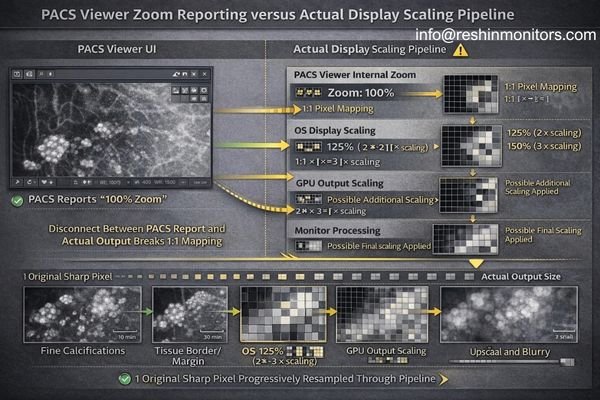
“100%” is often a viewer-side statement about how image data is being sampled, not a guarantee that the final output is pixel-perfect at the panel. The OS can still scale the rendered surface, the GPU can still scale the composed desktop to match a chosen timing, and the monitor can still apply internal processing if the input timing is non-native. In virtual or remote workflows, an additional resampling layer may be introduced to fit the client display. The table below shows common scaling stages and what they typically change in day-to-day PACS viewing.
| Scaling Stage | Impact on Diagnostic Viewing | Common Trigger Conditions | Quality Effect | Detection Method |
|---|---|---|---|---|
| PACS Viewer Internal | Controls image zoom relative to source data | User zoom controls, fit-to-window modes | Variable based on zoom ratio | Viewer zoom indicator |
| OS Desktop Scaling | Resamples application surfaces for high-DPI | DPI settings above 100%, high-resolution displays | Softening, gray blending | Desktop scaling settings |
| GPU Output Scaling4 | Adjusts timing to match monitor requirements | Non-native resolutions, aspect ratio changes | Interpolation artifacts | Display adapter settings |
| Monitor Processing | Panel-level scaling and aspect handling | Input timing vs native resolution mismatch | Additional resampling | Monitor menu settings |
| Remote Session Compression | Client display size and bandwidth optimization | Remote desktop, virtualization platforms | Compression artifacts, rescaling | Remote session configuration |
The practical use of this table is isolation: lock the OS scaling policy, then confirm GPU output is native, then confirm the monitor is not scaling, and finally evaluate whether remote sessions are adding a separate resampling step. When teams standardize and verify those stages, perceived sharpness and annotation behavior become more consistent across reading stations.
How Should You Standardize OS Scaling for Diagnostic Consistency?
Systematic configuration management ensures predictable diagnostic presentation across workstations.
Standardization requires defining validated workstation profiles per monitor type: fixed desktop scaling policy, locked native resolution, and documented GPU settings that maintain native output timing. Verification should include repeatability testing across OS updates, driver changes, and switching events that commonly re-enable scaling behavior through configuration drift.
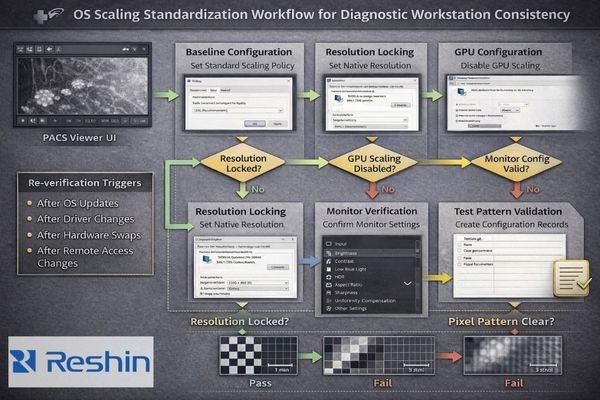
A reliable approach is to treat scaling as a controlled configuration item with a simple, repeatable action chain: lock OS scaling → lock native resolution → disable GPU scaling → confirm monitor no-scaling behavior → verify with a pixel test pattern → re-check after change events. This keeps diagnostic presentation consistent without relying on memory or ad-hoc per-user tweaks. The goal is not to ban accessibility features, but to ensure the clinical reading path is validated and stays stable across the lifecycle of the workstation image, driver stack, and display hardware.
Desktop Configuration Control
Establish a standard desktop scaling policy5 your IT team can apply consistently across diagnostic stations. Many environments baseline diagnostic workstations at 100% scaling to reduce hidden resampling, then handle UI readability through controlled methods such as validated font/UI settings and consistent workstation ergonomics. The key is avoiding one-off per-user scaling changes that create station-to-station variability and complicate troubleshooting.
Output Timing Standardization
Lock the desktop resolution to the monitor’s native matrix and document the approved refresh/timing profile so the GPU outputs true native timing rather than falling back to compatibility modes. Ensure GPU scaling is disabled (or set to “no scaling”) in the driver profile used for diagnostic stations, because a driver “fit” mode can reintroduce interpolation even when OS settings look correct. Contact us at info@reshinmonitors.com if you need assistance developing scaling standardization procedures for your diagnostic workstation installations.
Change Management and QA Integration
Treat OS scaling and related settings as controlled items with a baseline record, a short verification method, and a recovery procedure after change events. Re-check after OS and GPU driver updates, GPU swaps, docking/KVM path changes, and remote access tool deployments—common points where scaling behavior can drift silently. Include a quick pixel-pattern check in acceptance and post-change QA so resampling artifacts are caught before clinical use, and record exact settings so stations can be restored quickly.
Which Diagnostic Displays Help Reduce Scaling-Related PACS Variability?
Display selection and integration approaches can minimize scaling-induced diagnostic quality variations.
Monitor selection should prioritize configurations that support standardized scaling approaches while maintaining diagnostic image quality.
| Clinical Role / Application | Scaling Considerations | Display Requirements | Recommended Model | Key Integration Features |
|---|---|---|---|---|
| Primary Diagnostic Reading | Native resolution, minimal scaling | High resolution, stable native timing | MD52G | Consistent 1:1 pixel mapping, stable timing |
| Multi-Modality Review | Variable content sizes | Flexible scaling support, consistent quality | MD45C | Predictable scaling behavior, stable output |
| Specialized Interpretation | Critical pixel accuracy | Precise pixel mapping, minimal processing | MD33G | Native timing priority, controlled processing |
| Large Format Review | Extended viewing, team consultation | Stable scaling across distances | MD85CA | Consistent presentation, stable viewing angles |
| Ultra-High Resolution Reading | Maximum detail resolution | Native 8MP+ support, scaling optimization | MD120C | Native high-DPI support, optimized pixel density |
Choose resolution and screen size combinations that support comfortable daily reading at OS scaling levels your IT team can standardize, so clinicians are not pushed into mixed scaling practices just to read UI text. Prioritize displays that reliably accept native timing and support predictable no-scaling behavior, because that makes pixel-accurate presentation easier to validate and maintain. Also plan the signal chain—GPU outputs, cabling, and any intermediates—so the workstation stays in stable native modes without timing fallbacks that trigger GPU or monitor scaling.
As a medical-grade diagnostic display manufacturer, Reshin focuses on predictable input behavior and deployment documentation that supports validated workstation profiles, repeatable verification, and consistent presentation after maintenance events. When replacements or updates occur, documented baselines help teams restore the same behavior quickly instead of rediscovering scaling issues through user complaints.
FAQ
If my PACS viewer shows "100%," does that guarantee 1:1 pixel mapping?
No—"100%" is often the viewer’s internal zoom, while OS scaling, GPU scaling, or monitor scaling can still resample the final output.
Is Windows display scaling the most common cause of unexpected softness?
It’s one of the most common, especially when scaling is set above 100% or when profiles differ between workstations, but GPU and monitor scaling can produce similar symptoms.
Can I keep accessibility scaling and still read diagnostically?
Sometimes, but you must verify the clinical path end-to-end; many teams standardize 100% scaling for diagnostic stations and use other methods for UI readability.
What is the fastest visual test for scaling?
A 1-pixel checkerboard or 1-pixel stripe pattern—if you see gray blending or shimmering on static patterns, resampling is likely occurring.
Do remote desktop tools affect pixel mapping?
Often yes—many remote solutions rescale/compress frames to fit client displays, which can break 1:1 mapping even if local settings are correct.
When should we re-check scaling settings in QA?
After OS/GPU driver updates, hardware swaps, docking/KVM changes, or whenever users report "soft" images or inconsistent sharpness.
Conclusion
OS display scaling affects PACS viewing because it can introduce hidden resampling between diagnostic image rendering and final monitor output, breaking true 1:1 pixel mapping and changing perceived sharpness and noise texture. A stable approach is to standardize OS scaling and native timing as controlled configuration items, then verify repeatability with pixel-pattern checks after updates, hardware changes, and workflow transitions that commonly reintroduce scaling behavior.
At Reshin, we design and manufacture medical-grade diagnostic displays with the expectation that image quality must be repeatable in real deployments. By pairing predictable display behavior with clear baseline documentation and verification guidance, radiology teams can reduce workstation-to-workstation variability and maintain consistent diagnostic presentation throughout the lifecycle of their PACS viewing environment.
✉️ info@reshinmonitors.com
🌐 https://reshinmonitors.com/
-
Understanding configuration drift is crucial for maintaining consistent performance across systems, especially in medical imaging. ↩
-
Exploring PACS viewers will provide insights into their rendering processes, enhancing your knowledge of diagnostic imaging. ↩
-
Understanding OS scaling is crucial for ensuring pixel-accurate presentations in diagnostic reading, which can impact data interpretation. ↩
-
Learn about GPU Output Scaling to understand how it adjusts image quality for different monitor resolutions. ↩
-
Understanding desktop scaling policies can help ensure consistent UI readability and reduce troubleshooting complexities. ↩