Display rotation issues can severely impact radiologists’ workflow and diagnostic accuracy. Many diagnostic monitors have auto-rotation and portrait lock features, but verifying their reliability requires more than just checking if they work initially.
To properly verify auto-rotation and portrait lock on diagnostic monitors, test both features across multiple scenarios including system restarts, sleep/wake cycles, and multi-display setups. Check for consistent performance, proper orientation detection, and reliable locking over extended periods.
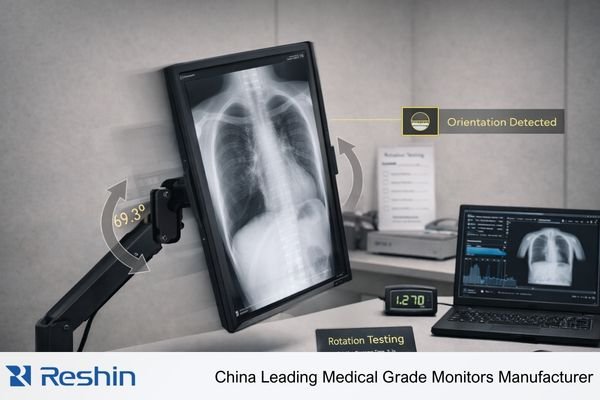
Having spent years working with medical displays1, I’ve learned that the real challenge isn’t just getting the rotation to work – it’s ensuring these features remain stable and reliable through daily clinical use. Let me share the key verification points I’ve discovered through experience.
How do you test auto-rotation reliability across different system states?
Initial rotation tests may look promising, but system changes like sleep mode or reboots can cause failures. I’ve seen cases where displays lose their orientation settings after waking from sleep, creating serious workflow disruptions.
Auto-rotation verification must include testing through multiple system state transitions: cold boots, sleep/wake cycles, input source switches, and extended operation periods. Document response times and verify correct orientation is maintained after each transition.
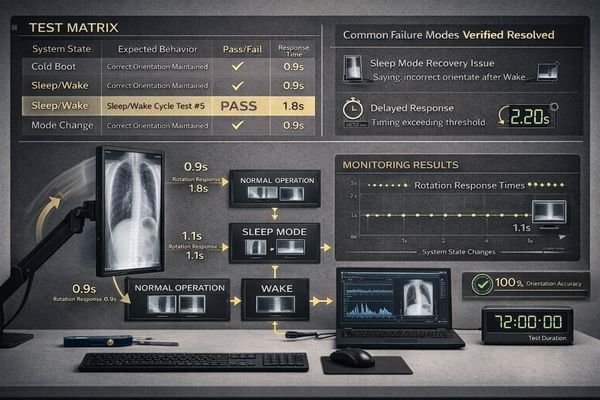
The key to thorough verification is simulating real-world usage patterns. I recommend creating a test matrix that covers:
System State Transitions
- Cold boot behavior
- Sleep/wake cycles (multiple iterations)
- Input source switching
- Power cycling
- Driver/firmware updates
Performance Metrics2
| Test Parameter | Acceptance Criteria |
|---|---|
| Rotation Response Time | < 2 seconds |
| Orientation Accuracy | 100% correct |
| Settings Retention | No loss after transitions |
| Display Artifacts | None during rotation |
Monitoring these parameters across hundreds of cycles helps identify intermittent issues that brief testing might miss. I’ve found that problems often emerge only after extended use or specific combinations of state changes.
How do you validate portrait lock stability in multi-display environments?
Portrait lock seems simple, but multi-display setups introduce complexity. One display’s rotation can affect others, potentially disrupting critical diagnostic workflows.
Multi-display validation requires testing portrait lock across various screen configurations and layouts. Verify that rotating one display doesn’t affect others, check for proper synchronization, and ensure consistent behavior across all connected displays.
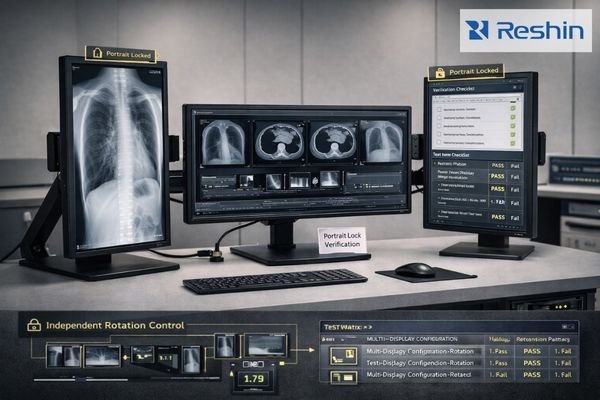
When verifying portrait lock in multi-display environments3, consider these key aspects:
Display Configuration Scenarios
- Dual monitor setups (side-by-side)
- Triple monitor arrangements
- Mixed orientation layouts
- Different resolution combinations
Critical Validation Points
| Test Area | Verification Steps |
|---|---|
| Layout Stability | Check position retention |
| Cross-display Impact | Monitor adjacent displays |
| Window Behavior | Verify window positions |
| OSD Menu Orientation | Confirm proper alignment |
I always emphasize testing different display combinations since each setup can reveal unique issues. Real-world usage often involves complex arrangements that standard testing might not cover.
What role does graphics driver compatibility play in rotation verification?
Graphics driver issues can undermine even well-designed rotation features. I’ve encountered cases where driver updates completely broke auto-rotation functionality.
Driver compatibility testing should include verification across multiple driver versions, different GPU models, and various operating systems. Check for rotation delays, display artifacts, and proper EDID handling.
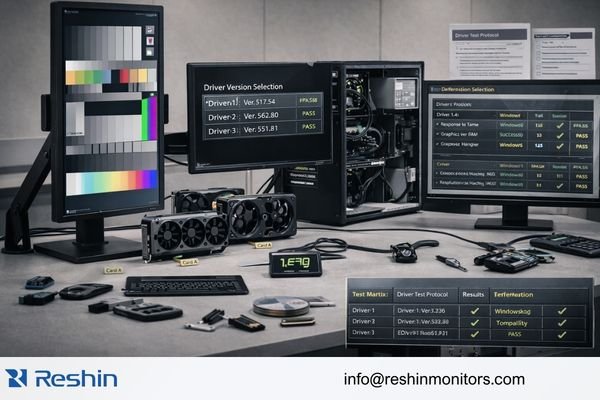
A comprehensive driver verification approach includes:
- Multiple driver versions
- Different GPU manufacturers
- OS compatibility checks4
- EDID recognition testing
Performance Indicators
| Test Parameter | Target Result |
|---|---|
| Driver Detection | Immediate |
| EDID Reading | Accurate |
| Rotation Speed | Consistent |
| Resolution Handling | No scaling issues |
My experience shows that driver-related issues often surface during long-term use, making extended testing crucial for reliable verification.
Conclusion
Thorough verification of auto-rotation and portrait lock requires comprehensive testing across system states, multi-display configurations, and driver combinations. Focus on long-term stability rather than just initial functionality.
-
Explore this link to understand how to maintain stability and reliability in medical displays, crucial for clinical settings. ↩
-
This link will guide you on setting up performance metrics, crucial for evaluating system reliability and efficiency. ↩
-
Exploring this resource will provide insights into effective testing strategies for various display setups. ↩
-
Learning about OS compatibility checks ensures that your drivers work seamlessly across different operating systems. ↩