In my experience with PACS workstation deployments, multi-stream transport creates both convenience and complexity that requires careful validation for reliable clinical operation.
Multi-Stream Transport (MST) allows one DisplayPort output to drive multiple displays through daisy-chaining or hubs, simplifying cabling for dual-screen imaging workstations while introducing extra negotiation steps and variables in the signal chain. Success depends on bandwidth management, stable EDID handling, consistent display enumeration, and validated mode sets that prevent silent downgrades affecting image quality and workflow consistency in demanding clinical environments.
From my work with surgical visualization systems, I’ve learned the hard part isn’t “getting two screens to light up.” The hard part is keeping the exact same modes, ordering, and image characteristics stable after the events that happen every day in hospitals—sleep/wake cycles, restarts, driver updates, and occasional service swaps. The key is to treat MST as an integration project1 with a defined acceptance target, then lock down the topology, validate the lifecycle, and document a fast recovery path when something inevitably changes.
What is MST and why is it used in dual-screen imaging workstations?
Multi-Stream Transport provides single-link convenience for multi-display configurations while introducing additional complexity considerations.
Multi-Stream Transport (MST) is a DisplayPort feature that allows one physical DisplayPort output to carry multiple independent video streams, typically through a daisy chain or an MST hub, so a workstation can drive two displays without using two separate GPU ports. In dual-screen imaging setups, MST is attractive because it simplifies cabling, preserves desk and rack cleanliness, and can reduce port pressure on GPUs especially when two monitors must be driven at the same resolution, refresh rate, and color mode.
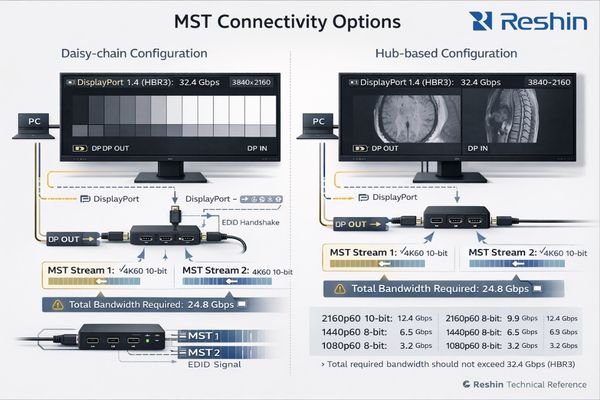
In my OR integration work at Reshin, I’ve learned that the same multiplexing that makes MST convenient also introduces extra negotiation steps and more variables in signal chains, which can affect detection, stability, and consistency if not validated carefully in clinical environments. The difficulty is that MST failures often present as “inconvenience,” not hard failure—one display enumerates slower, ordering swaps after a reboot, or a mode is renegotiated without telling the user.
Single-Link Convenience and Cabling Benefits
MST allows dual-display configurations using one DisplayPort connection, reducing cable complexity, preserving GPU ports for other uses, and simplifying workstation setup while maintaining independent control over each display for clinical imaging applications. In practice, this makes workstation deployment cleaner and service access easier—especially in compact reading rooms and mobile carts.
Added Complexity in Signal Chain Management
However, MST2 introduces additional layers of display enumeration, bandwidth negotiation, and mode validation that require systematic testing across sleep-wake cycles, driver updates, and hardware changes that commonly occur in clinical IT environments. Our approach is to reduce variability first (same monitors, same firmware, known-good hub/chain), then validate the “full lifecycle” events that trigger renegotiation, and finally document the topology so service changes don’t accidentally alter the behavior.
What bandwidth and timing constraints can silently break MST setups?
Bandwidth limitations can cause subtle performance degradation that affects image quality without generating obvious error messages.
MST success depends on total link bandwidth and compatible timing across both displays, and failures often show up as subtle fallbacks rather than obvious errors. If the combined resolution, refresh rate, and color depth exceed what the DP link can sustain after accounting for overhead, the system may silently reduce refresh rate, drop to lower color depth, enable chroma subsampling, or force a different timing mode that changes image appearance.
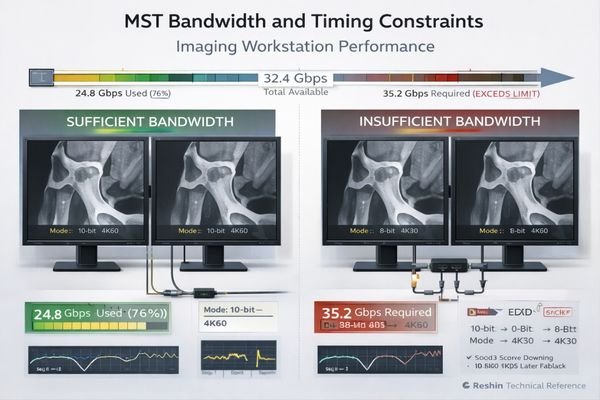
Based on the projects I support with PACS and KVM partners, these compromises are difficult because they can look “fine” to the OS while still changing the way grayscale transitions or fine textures appear in side-by-side reading. That’s why we treat bandwidth as a design constraint, not a theoretical spec: we choose a target dual-display mode set and validate that the chain sustains it with margin.
How we address it in practice:
- Define the target mode set up front for both displays: resolution, refresh rate, bit depth, and color format.
- Validate both displays simultaneously through the same hub/chain—not separately—because the combined load is what triggers downgrades.
- Check for silent fallbacks after each lifecycle event (sleep/wake, reboot, driver update). The difficulty is that users rarely get a warning, so the verification must be deliberate.
The safest practice is to validate exact modes you intend to run including resolution, refresh rate, bit depth, and color format on both displays simultaneously through the same hub or chain, then lock those settings through documented configuration control procedures that prevent unintended changes during routine system maintenance or updates.
These bandwidth-driven compromises can be particularly problematic in diagnostic imaging3 where subtle changes in bit depth or color representation could affect interpretation accuracy. The “solve” is not guessing—it’s establishing an acceptance baseline and repeatedly proving the system stays in that baseline.
How do EDID, display ordering, and wake behavior affect reliability?
MST introduces additional complexity in display detection and enumeration that can affect workflow consistency.
MST introduces an extra layer of discovery where the GPU must enumerate multiple downstream displays, and small differences in EDID handling can change which monitor becomes Display 1, what modes are offered, and how the system recovers after sleep or reboot. Common real-world issues include one monitor not being detected after wake, swapped monitor ordering that breaks hanging protocols, or brief mode renegotiation that changes brightness or bit depth behavior until users re-apply settings.
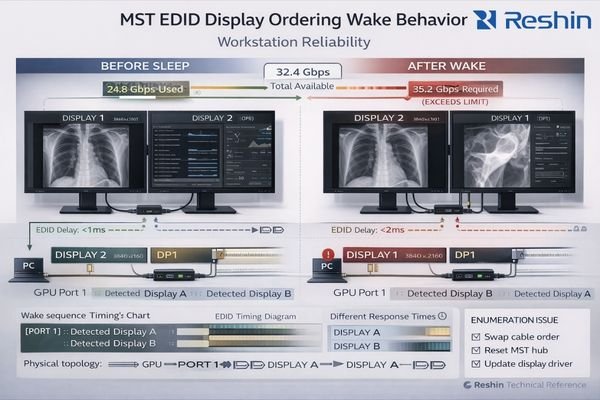
This problem is difficult because it’s partly timing-dependent: a wake sequence can enumerate displays in a different order if the hub or one panel responds a little slower, or if EDID is re-read in a different order. The solution is to remove as many degrees of freedom as possible, then validate behavior across repeated cycles.
| Reliability Factor | Common Issue | Impact on Workflow | Validation Requirement | Prevention Strategy |
|---|---|---|---|---|
| Display Enumeration | Inconsistent monitor ordering | Breaks hanging protocols | Document physical topology | Fix port order, identical models |
| EDID Negotiation4 | Mode changes after wake | Altered image appearance | Test sleep-wake cycles | Standardize firmware versions |
| Bandwidth Management | Silent format downgrades | Reduced image quality | Validate exact mode sets | Confirm sustainable bandwidth |
| Recovery Behavior | Detection failures post-reboot | Workflow interruption | Test system lifecycle events | Document recovery procedures |
| Driver Integration | Update-triggered changes | Configuration drift | Test driver update cycles | Maintain configuration baselines |
What we do to prevent workflow breaks:
- Topology discipline: we document GPU port → hub port → Display A/B and enforce it during service swaps.
- Standardization: we avoid mixing monitor models and firmware revisions in the same MST chain.
- Lifecycle testing: we run cold boot and sleep/wake cycles repeatedly to catch intermittent enumeration issues before go-live.
Quick symptom-to-fix guidance (so readers can act fast):
- One display missing after wake: verify hub firmware/quality, confirm cabling/port order, then retest sleep/wake cycles to reproduce.
- Display order swapped (hanging protocol breaks): enforce physical topology and label Display A/B; avoid swapping ports during maintenance.
- Image looks different after a reboot/wake: immediately confirm mode set (refresh, bit depth, chroma format) before assuming calibration drift.
If the workflow is sensitive to ordering, document the physical topology including GPU port to hub to display A and B connections, and enforce it during service swaps to maintain consistent behavior across maintenance cycles and hardware replacements.
What image-quality pitfalls matter most for medical imaging when using MST?
Image quality risks focus on unintended mode changes that alter critical display characteristics without obvious indication.
The biggest image-quality risk with MST is unintended mode changes that alter grayscale or sharpness without being immediately obvious to users. For diagnostic viewing, watch for reduced bit depth, unexpected dithering behavior, chroma subsampling, or scaling modes triggered by bandwidth pressure or mode negotiation after wake events.
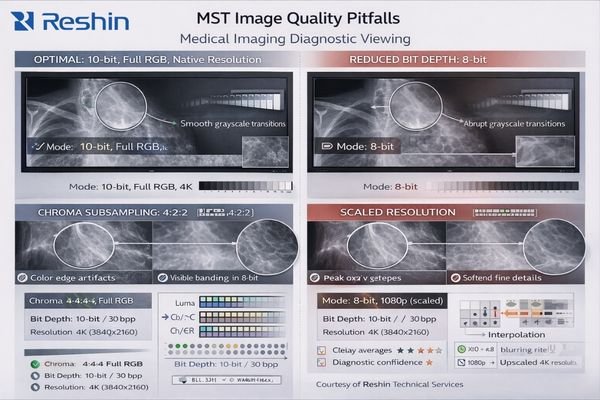
From an engineering standpoint, I usually recommend that for surgical or clinical review, the concern shifts toward latency, motion stability, and consistent color behavior across two screens where any mismatch could affect clinical interpretation during procedures requiring sustained visual precision.
Diagnostic Imaging Quality Considerations
The practical safeguard involves defining a known-good mode set for each monitor including resolution, refresh rate, bit depth, color format, scaling, and any calibration profile, then confirming it persists across switching events and over time through documented validation procedures. The difficult part is that a system can look “correct” while silently changing one parameter (like bit depth or chroma), so the validation must explicitly check those fields rather than relying on visual impression alone.
A reliable way to solve this is to use:
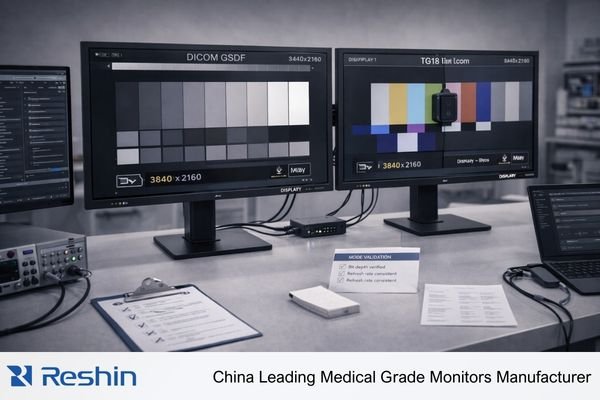
- Side-by-side test patterns (grayscale ramps, low-contrast steps) to detect subtle differences.
- Representative clinical images to confirm real reading behavior remains consistent.
- A repeatable checklist that is run after wake/reboot/driver changes so drift is caught early.
Consistency Validation and Testing Protocols
Side-by-side test patterns5 and representative clinical images are essential to detect small mismatches that the operating system might not flag as errors, ensuring that both displays maintain identical image characteristics throughout operational use.
How to choose displays and integration practices that reduce MST headaches?
MST becomes far easier to operate when you treat it like a standardized “platform” rather than an ad-hoc cabling trick. The goal is to reduce variables (hardware, topology, modes) so routine clinical events don’t trigger re-enumeration surprises or silent image-quality downgrades.
The most reliable approach is standardization: use identical display models and firmware, a validated MST hub/chain with bandwidth margin, and a locked “known-good” dual-screen mode set (resolution, refresh rate, bit depth, color format). Then enforce a fixed physical topology (GPU port → hub port → Display A/B) so wake cycles, driver updates, and service swaps don’t reorder screens or change modes.
To keep the section actionable but lean, I recommend three practical steps:
1) Fix and label topology (GPU port number + hub port + Display A/B) and don’t deviate during maintenance.
2) Record a known-good baseline for both screens (resolution/refresh/bit depth/color format + scaling + calibration profile) and store it with the workstation asset record.
3) Use a recovery checklist after common events (sleep/wake, reboot, driver update, hub/display swap): confirm both screens are detected in the correct order, verify modes haven’t downgraded, then reapply calibration if needed.
If your workflow is mission-critical and cannot tolerate ordering surprises or any mode drift, two independent DisplayPort links6 remain the simplest long-term solution. MST can still be a strong option when you can standardize and repeatedly validate the full lifecycle behavior.
FAQ
Is MST acceptable for primary diagnostic reading?
It can be, but only if the exact dual-display mode set is validated and remains stable through sleep-wake cycles, reboots, and driver updates; otherwise two independent links are safer.
Why does one monitor disappear after wake when using an MST hub?
It’s often EDID or enumeration timing during wake events; standardizing hub and firmware versions and testing wake cycles usually identifies the weak link.
Can MST force lower bit depth or chroma subsampling?
Yes, if bandwidth is constrained; the system may quietly reduce color format to keep the link stable, so mode verification is essential.
How do I keep monitor ordering stable for hanging protocols?
Fix the physical topology and port order, keep identical models, and document the mapping so service swaps don’t reorder displays.
Should I use daisy chain or an MST hub?
Use whichever is validated with your GPU, driver, and displays; hubs can simplify cabling, while daisy chain reduces one device but may be more topology-sensitive.
What happens if I exceed MST bandwidth limits?
The system typically reduces refresh rate, bit depth, or enables compression automatically, which may affect image quality without generating error messages.
Conclusion
MST can be a clean way to drive dual-screen imaging workstations from one DisplayPort link, but it must be treated as a system integration choice rather than simple cable convenience. The main risks are silent bandwidth-driven downgrades, EDID/enumeration surprises after sleep or reboot, and small mode changes that reduce image consistency without obvious system alerts. With standardized hardware, documented topology, and lifecycle validation across real clinical events, MST can be a reliable option for many imaging workstations.
Our experience at Reshin shows the hardest part is controlling the variables that cause intermittent behavior. The practical solution is to standardize displays and firmware, lock a known-good mode set, and use a repeatable recovery checklist after wake, reboot, driver updates, or service swaps. If your reading workflow cannot tolerate ordering surprises or any mode drift, two independent DisplayPort links remain the safest baseline for mission-critical diagnostic use.
✉️ info@reshinmonitors.com
🌐 https://reshinmonitors.com/
-
This resource will provide insights on managing MST projects, ensuring stability and efficiency in surgical environments. ↩
-
Understanding MST is crucial for optimizing display setups and ensuring reliable performance in clinical environments. ↩
-
Exploring the role of accurate bit depth and color in diagnostic imaging can enhance your understanding of its impact on medical interpretations. ↩
-
Exploring EDID Negotiation can provide insights into maintaining optimal image quality and preventing mode changes. ↩
-
Explore this link to understand how side-by-side test patterns can enhance diagnostic imaging quality and consistency. ↩
-
Explore this link to understand how independent DisplayPort links can enhance your workflow and prevent display issues. ↩