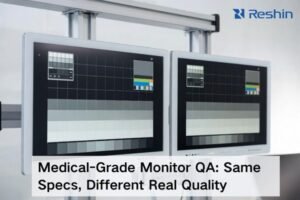
In my experience with medical imaging systems, understanding PACS fundamentals is essential for proper radiology workstation display selection and validation.
PACS (Picture Archiving and Communication System) is the image backbone that stores, organizes, and delivers studies across radiology. It shapes monitor workflows through PACS viewers and hanging protocols—how images are laid out, rendered, windowed, and compared with priors—so diagnostic display performance must be validated inside real PACS workflows, not in isolation.
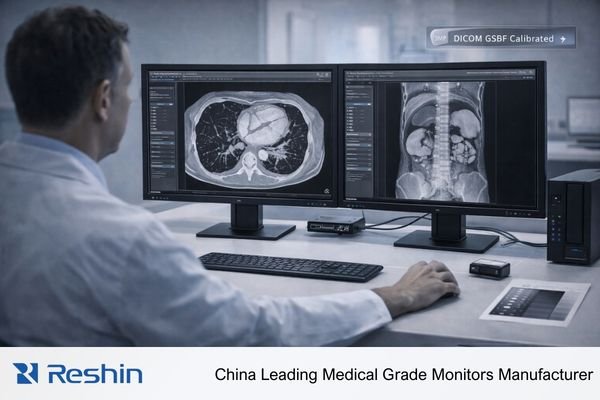
From my work with surgical visualization systems, I’ve learned that a “good monitor” can still feel unreliable if PACS behavior changes what the radiologist experiences: priors load unpredictably, layouts land on the wrong screen, or rendering under load becomes jerky. The difficult part is that these issues often look like monitor problems, but they usually come from the end-to-end chain (PACS viewer1 + workstation + GPU/OS output + network/storage). The practical solution is to define a known-good baseline, validate it under real workloads and real hanging protocols, and build a repeatable re-check process for updates and maintenance.
What is PACS and what does it do in radiology?
PACS provides the fundamental infrastructure for medical image storage, organization, and distribution across radiology departments.
PACS (Picture Archiving and Communication System) stores, organizes, and distributes medical images so radiologists and clinicians can view them across workstations and departments. In daily radiology, it connects modalities (CT, MRI, DR, ultrasound), reading workstations, priors, and reports—enabling fast retrieval and consistent access across clinical workflows.
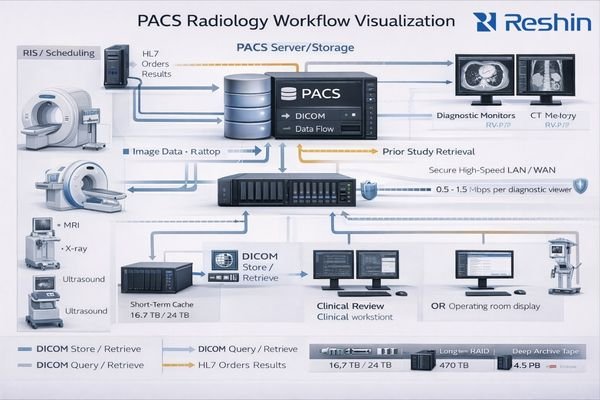
Because PACS governs how studies are fetched, rendered, windowed, and compared with priors, it directly shapes what radiologists see and how efficiently they can move through cases. A monitor can be perfectly calibrated, but if the PACS viewer introduces inconsistent rendering, scaling, or layout behavior, diagnostic confidence and reading speed still suffer.
Image Storage and Retrieval Infrastructure
PACS manages large volumes of images from multiple modalities, ensuring current and prior studies remain accessible across reading rooms, consultation spaces, and clinical review stations. In practice, performance is only as good as the slowest component in the path (storage, network, server-side processing, viewer rendering), which is why PACS discussions quickly become “workflow2” discussions.
Workflow Integration and Display Control
PACS isn’t only an archive—it influences how images appear and how users interact with them (window/level response, series navigation, comparison with priors). When this layer behaves inconsistently, the workflow friction shows up at the monitor even if the panel itself is healthy.
How do PACS viewers and hanging protocols change what radiologists need from monitors?
PACS viewers control image presentation patterns and interaction models that directly determine monitor workflow requirements.
PACS viewers don’t just display images—they enforce reading patterns through hanging protocols, layout rules, and interaction models. That drives monitor needs: resolution and size must match multi-series layouts, grayscale and luminance stability must hold through rapid window/level changes, and dual-monitor consistency must support stable primary/secondary role assignments.
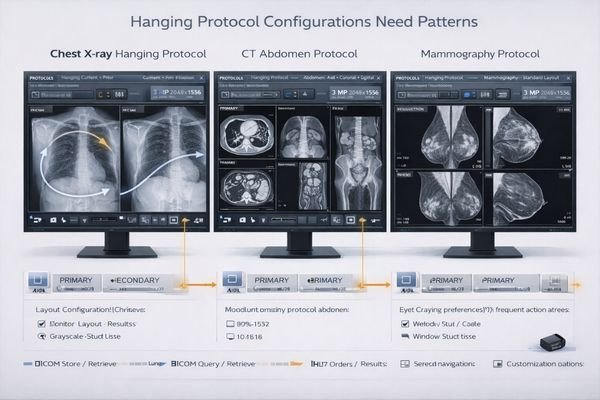
Small inconsistencies—slight brightness mismatch, different scaling behavior, or unstable orientation handling—can break the muscle memory hanging protocols rely on and add friction across hundreds of cases per day. The hard part is that the workflow assumes “left monitor is always primary” (or similar), and when display enumeration changes after an update or service swap, the protocol can place the wrong series on the wrong screen.
A practical way to reduce this risk is standardization: consistent monitor models3, consistent GPU/OS configuration, and documented physical topology so screen ordering stays stable. In busy reading rooms, that consistency is often worth more than chasing marginal spec differences.
What performance and stability issues show up at the monitor when PACS is stressed?
System stress reveals workflow problems that appear as monitor issues but originate from end-to-end performance bottlenecks.
When PACS is stressed by large CT studies, multiple priors, heavy 3D reconstruction, or network/storage latency, radiologists often see “monitor-like” symptoms that are really end-to-end bottlenecks: sluggish scrolling, delayed updates, inconsistent frame pacing, or sudden UI redraws that break diagnostic rhythm.
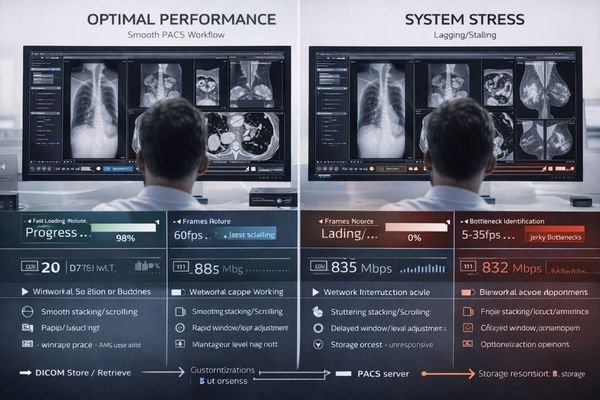
The difficulty is that these symptoms can trigger secondary issues in the display chain: the workstation may renegotiate output modes, enumeration timing may change in multi-display setups, and visual consistency can drift without anyone intentionally changing settings. That’s why validation must include stressed workloads and long sessions—what matters is stability when radiologists are moving quickly through real cases.
| Stress Condition | Apparent Monitor Symptom | Actual Root Cause | Workflow Impact | Validation Requirement |
|---|---|---|---|---|
| Large CT Studies | Sluggish scrolling response | Network/storage bottleneck | Interrupted reading rhythm | Use 3 representative large studies; scroll + window/level for 10–15 minutes |
| Multiple Priors | Delayed image updates | Server/viewer processing | Comparison workflow delays | Load study + 2–3 priors repeatedly; record load time and interaction lag |
| 3D Reconstruction | Inconsistent frame pacing | CPU/GPU contention | Reduced confidence | Run the typical 3D workflow; observe pacing and UI responsiveness |
| Network Latency | UI redraw interruptions | Timeout/retry behavior | Concentration loss | Test during peak network periods or simulated latency windows |
| Display Re-enumeration | Mode changes, scaling shifts | OS/GPU negotiation | Broken hanging protocols | Reboot/sleep-wake and confirm ordering + output modes remain stable |
The practical lesson is that monitor validation must be tied to PACS workload testing4 with real studies, real hanging protocols, and long reading sessions, because stability under load is what protects diagnostic rhythm.
How should you validate PACS-to-monitor consistency for diagnostic reading?
Comprehensive validation requires treating PACS workstations as complete viewing chains rather than isolated components.
Validation should treat the PACS workstation as a complete viewing chain where viewer settings, GPU output modes, OS scaling, and monitor calibration/QA all interact. Start by defining a known-good baseline (resolution, refresh rate, bit depth, color format, OS scaling at 100%, and the correct DICOM calibration profile), then verify it persists through real events such as PACS updates, GPU driver updates, sleep/wake cycles, reboots, and dual-monitor re-enumeration.
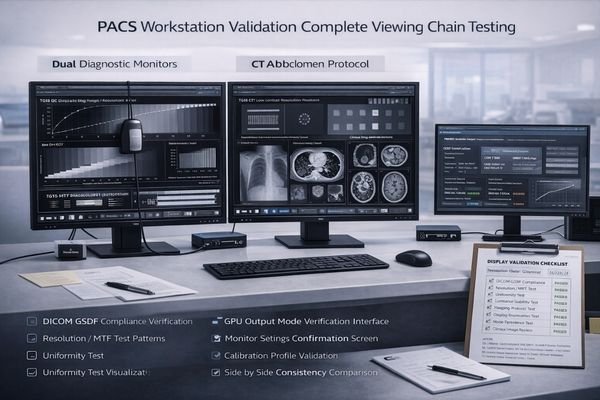
From an engineering standpoint, I recommend validating with TG18/DICOM test patterns5 plus representative clinical studies to confirm grayscale steps, perceived uniformity, and side-by-side consistency across both monitors. The hard part is that many problems are “silent”—the OS may not warn you when a mode changes—so you need explicit checks.
System-Level Baseline Establishment
Define and record a baseline that can be re-checked after changes:
- Output mode per monitor: resolution, refresh rate, bit depth, color format
- OS scaling fixed at 100% (avoid mixed DPI scaling in diagnostic reading)
- Correct DICOM calibration profile active
- Stable left/right role assignment for hanging protocols
Comprehensive Lifecycle Testing
Treat updates and maintenance as triggers for re-validation. A practical three-step recovery workflow after an event (wake/reboot/updates/service swap) is:
1) Confirm both monitors are detected and ordered correctly for hanging protocols.
2) Confirm output modes match the baseline (refresh/bit depth/color format/scaling).
3) Reapply calibration/ICC profile and re-check TG18 patterns side-by-side.
Document topology and settings so swaps don’t silently change ordering or output modes and break hanging protocols.
Which Reshin displays fit common PACS radiology workstation workflows?
Selection should prioritize workflow compatibility and long-term stability over raw specifications.
For PACS radiology workstations, selection should start from reading tasks and hanging protocols rather than raw panel specifications, matching monitor size and resolution to typical layouts whether single high-detail primary or dual-screen reading configurations.
Prioritize stable grayscale behavior and long-session luminance consistency while ensuring the display chain stays predictable with your GPU outputs including resolution, refresh rate, and bit depth settings plus OS scaling requirements for optimal image presentation.
| Clinical Role / Application | Usage Pattern | Display Requirements | Recommended Model | Key Integration Considerations |
|---|---|---|---|---|
| Primary Diagnostic Reading | Single high-resolution display | Superior grayscale accuracy, calibration support | MD32C | DICOM compliance, stable luminance |
| Dual-Screen Reading | Primary/secondary layout | Matched pair consistency, hanging protocol support | MD45C | Consistent grayscale, role stability |
| Clinical Review | Multi-modality viewing | Balanced performance, versatile connectivity | MD46C | Stable behavior, predictable integration |
| Specialized Imaging | Advanced diagnostic work | High-end image quality, comprehensive validation | MD52G | Premium grayscale, certification support |
| High-Detail Diagnostic | Detail-critical reads | High-resolution consistency, QA support | MD85CA | Long-session stability, rigorous QA |
Operationally, standardization reduces drift by using the same model family across rooms to simplify QA procedures, replacement logistics, and protocol consistency. The safest approach is to validate candidate monitors with your actual PACS viewer, typical study types, and daily interaction patterns before standardizing, because workflow fit is proven in use—not on paper.
FAQ
Is PACS the same as RIS or HIS?
No. PACS focuses on image storage, retrieval, and viewing, while RIS manages radiology workflow including orders, scheduling, and reporting, and HIS covers broader hospital information systems.
Can a great monitor compensate for a slow PACS?
Not fully. A good monitor preserves image fidelity, but performance bottlenecks in network, storage, or viewer rendering still slow workflow and should be addressed end-to-end.
Why do hanging protocols break after a workstation update?
Updates can change display enumeration, scaling, or GPU output modes; documenting topology and re-validating the baseline after updates helps prevent surprises.
How do I detect silent mode changes on a PACS workstation?
Check GPU and OS output mode reports, monitor info pages if available, and compare TG18 patterns side-by-side after sleep-wake cycles or updates.
What monitor size works best for dual-screen PACS reading?
Match your typical hanging protocols; many radiologists prefer matched displays around 24-27 inches for primary/secondary layouts with adequate resolution for multi-series viewing.
Should I calibrate PACS monitors differently than other displays?
Yes, use DICOM grayscale calibration standards and validate with TG18 test patterns to ensure accurate grayscale presentation for diagnostic imaging.
Conclusion
PACS is more than storage infrastructure—it shapes how images are displayed, compared, and navigated, directly influencing what radiologists need from monitors and how those monitors should be validated. The best results come from treating the workstation as an end-to-end chain: stable hanging protocols, predictable GPU/OS output modes, and monitors that maintain grayscale and luminance consistency over long sessions.
When facilities standardize hardware and document a known-good baseline (modes, ordering, scaling, calibration), they reduce surprises after updates and protect diagnostic rhythm across the reading room—so radiologists can focus on interpretation rather than troubleshooting.
✉️ info@reshinmonitors.com
🌐 https://reshinmonitors.com/
-
This resource will provide insights into the role of PACS viewers in radiology, helping you optimize workflows and improve efficiency. ↩
-
Exploring workflow integration can reveal ways to enhance image retrieval and reading speed in clinical settings. ↩
-
Understanding the impact of monitor models on workflow can help optimize setups for better performance and consistency. ↩
-
Exploring PACS workload testing can reveal best practices for enhancing efficiency and reliability in radiology environments. ↩
-
Understanding DICOM test patterns is crucial for ensuring accurate medical imaging and compliance with standards. ↩