Night Mode and “Eye Comfort” features can introduce unintended viewing shifts on clinical workstations, especially when the operating system (OS) participates in rendering what users see in diagnostic viewers. The concern is not cosmetic preference—it’s whether the workstation maintains repeatable viewing conditions across applications and system states.
Night Mode and Eye Comfort features can affect medical image viewing by shifting white point, reducing blue output, and sometimes dimming displays, which can change visual adaptation and perceived contrast. For diagnostic reading, maintain validated baselines and avoid comfort transforms during clinical interpretation, using separation and policy controls for mixed-use workstations. This article explains what changes in the rendering pipeline, how to validate impact in your actual viewer, and how to control the setting so it cannot persist unintentionally.
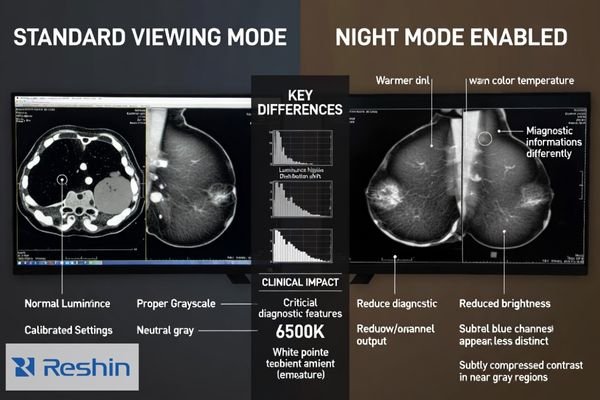
Most viewing issues related to comfort features come from hidden transforms that change how pixel values map to emitted light without a clear indicator that anything has changed. When those transforms vary across applications (color-managed vs. non-color-managed) or are reapplied after login, reboot, display reconnect, or user switching, the workstation can drift away from the validated baseline. Understanding where the transform is applied—and validating it in the exact clinical viewer(s) you use—helps organizations protect grayscale consistency1 while still addressing user comfort needs through workflow separation, environmental optimization, and controlled policies.
What do Night Mode and "Eye Comfort" actually change on a workstation?
Night Mode and Eye Comfort features modify display pipelines through deliberate color and brightness adjustments.
Night Mode and Eye Comfort features introduce deliberate shifts in display pipelines by reducing blue channel output, adjusting white point, and applying system-level color transforms affecting on-screen content. Implementation varies across OS levels, GPU drivers, or application overlays, creating global persistent changes or inconsistent behavior between color-managed and non-color-managed viewers that can alter grayscale perception and contrast.
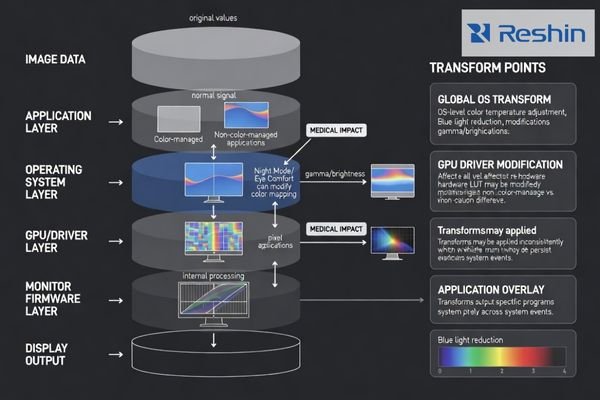
Even when these features are marketed as comfort-oriented, they are still transforms applied to the rendering pipeline. Depending on implementation, the change may be global and persistent across apps, or it may behave differently between viewers and desktop tools. In medical imaging workflows, this matters because comfort features can alter the viewer’s adaptation reference (effective white point) and, in some cases, reduce overall luminance. The result is not always a dramatic tint; it can be a small, consistent shift that changes how neutral grays look and how subtle structures stand out during long reading sessions. The operational risk increases if there is no reliable indicator or if the setting can remain enabled when switching from non-diagnostic tasks to diagnostic interpretation.
Implementation Mechanisms
Night Mode2 typically operates through system-level color management by reducing blue channel output and shifting white point toward warmer temperatures, while some implementations also apply global dimming that affects overall luminance range and contrast perception. In some environments, the transform is applied in the OS, in the GPU/driver layer, or via an overlay, which is why behavior can differ across applications and system events such as login, remote sessions, or driver updates.
Medical Workflow Impact
Medical imaging workflows depend on consistent grayscale perception and repeatable viewing conditions, making comfort feature modifications significant because they alter how pixel values map to visual perception rather than simply changing aesthetic preferences without clinical impact. If a workstation is validated for diagnostic reading under specific conditions, any additional global transform becomes a variable that must be controlled, documented, and tested for repeatability.
Why can warmer color temperature and dimming change perceived contrast in medical images?
Color temperature and brightness changes affect human visual adaptation and contrast discrimination abilities.
Medical image interpretation relies on detecting small luminance differences and local contrast variations influenced by absolute luminance and adaptation state. Night Mode’s blue output reduction and warmer white point shift viewer adaptation, potentially altering neutral gray perception and edge visibility. Overall brightness reduction can compress perceptual separation between near-gray tones, making subtle findings appear flatter.
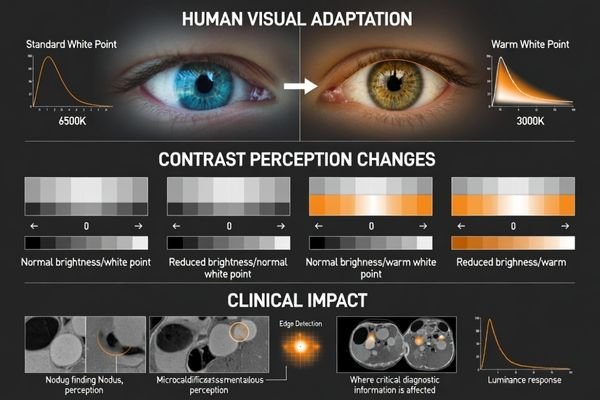
Human perception is part of the viewing system. Warmer white points and dimming can change how the eye adapts across a session, which may change the perceived separation between near-gray tones even when the underlying image data has not changed. This is why seemingly “minor” shifts can matter: small, repeatable differences can accumulate across long reading sessions and across different workstations, reducing repeatability and confidence in subtle contrast judgments. The risk is amplified in mixed environments where one application applies color management3 differently than another, or where the comfort setting is reapplied inconsistently after reboot or user switching. The practical takeaway is to treat comfort features as transforms that can change perceived contrast, and to validate their effect in the specific clinical viewer(s) and workflows that matter.
Should you ever use Eye Comfort features for diagnostic reading?
Diagnostic reading safety requires avoiding comfort features that alter calibrated display responses during clinical interpretation.
For diagnostic reading, avoid comfort features that alter calibrated display response during clinical interpretation because diagnostic consistency depends on controlling viewing conditions and minimizing hidden transforms. Limited acceptable situations include non-diagnostic tasks, training sessions, or administrative work, provided settings are clearly separated from diagnostic environments and cannot accidentally persist during clinical reading.
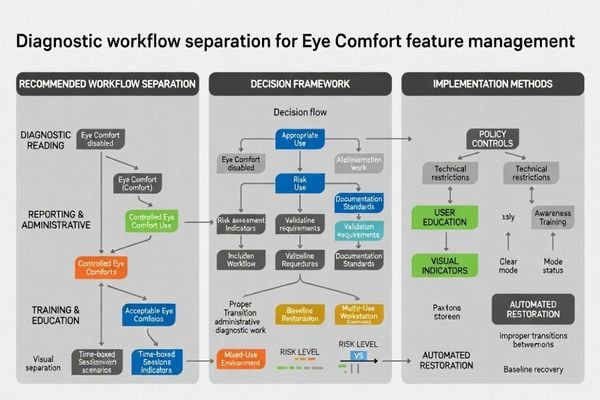
The safest default is to keep diagnostic viewing aligned to the validated baseline by preventing comfort transforms during clinical interpretation. Comfort features may be reasonable for non-diagnostic tasks on the same workstation—such as report writing, scheduling, or general desktop work—only if your workflow can guarantee the setting is visibly indicated and reliably reverted before reading. In practice, the biggest failure mode is not intentional use; it’s accidental persistence across sessions, users, or task switching. If your organization cannot guarantee restoration of the baseline (automated policy, clear indicator, and verification), it is better to restrict comfort features on reading stations. Comfort is valuable, but it must never compete with the requirement for repeatable viewing conditions when clinical decisions are being made.
The key consideration is whether your workflow can guarantee that comfort settings never interfere with diagnostic viewing conditions when clinical decisions are being made. That guarantee requires separation and control, not informal personal habits.
| Usage Scenario | Risk Level | Acceptable Use | Control Requirements | Validation Needs |
|---|---|---|---|---|
| Diagnostic Reading | High | Not recommended | Restrict via policy; ensure baseline restoration4 | Baseline verification in actual viewer |
| Report Writing | Medium | Limited | Clear separation; visible indicator | Confirm baseline restores before reading |
| Training Sessions | Low | Acceptable | Non-diagnostic context | Training environment isolation |
| Administrative Tasks | Low | Acceptable | Time-boxed use; restore baseline | Restore procedures verified |
| Mixed Workstations | High | Controlled | User/profile separation; automation | State validation across sessions |
If organizations choose to allow Eye Comfort features, control should be procedural with defined usage windows, clear visual indicators, automated baseline restoration, and change management preventing silent behavior modifications. Every finding should map to a decision path: restrict, allow with controls, or separate workflows—so the workstation remains predictable.
How can you verify whether Night Mode is impacting your viewing pipeline?
Verification should detect whether Night Mode introduces transforms affecting grayscale or luminance behavior in clinical viewers.
Verification focuses on detecting Night Mode transforms that change grayscale or luminance behavior in clinical viewers. Establish baselines with features disabled, then compare standardized test patterns and clinical images in actual applications under identical conditions. Test state changes including login, reboot, and display connections because systems may reapply comfort settings differently across sessions.
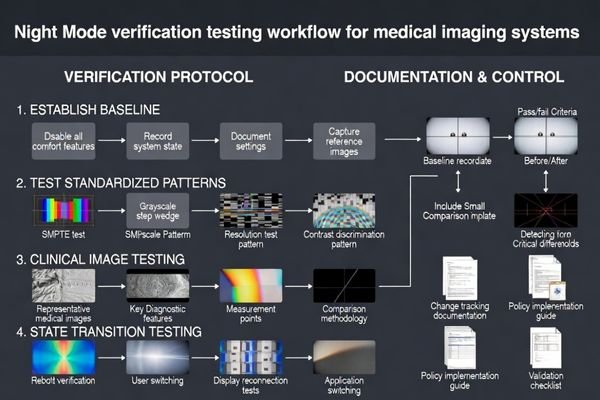
The most common verification mistake is testing in a generic image viewer instead of the actual clinical application5. Validation must be done in the same diagnostic viewer(s) used for clinical work, because different applications may apply system transforms differently. Start by capturing a baseline with the comfort feature off, then compare against the “on” state using standardized test patterns and a small set of representative clinical images. Look for shifts in neutral gray balance, changes in near-black and near-white step visibility, and differences in perceived contrast around subtle structures. Include multi-display checks if your reading setup uses more than one screen, and confirm whether dragging windows between displays changes appearance.
Baseline Testing Protocol
Practical verification involves establishing reference conditions with comfort features disabled, then systematically testing with representative clinical images and standardized patterns in the same applications, workstations, and ambient lighting used during actual clinical work. Record a simple evidence set (baseline images/pattern results, application name/version, OS/GPU state, display configuration) so the result is repeatable and auditable.
State Change Validation
Test system state transitions including user switching, display connections, and session management because comfort feature behavior may vary across login cycles, creating inconsistent viewing conditions that compromise diagnostic repeatability. Include reboot and logout/login checks, and confirm whether the system re-applies the comfort transform automatically. If you manage workstations at scale, treat this as change management: after OS or driver updates, re-validate that the baseline and restoration behavior remain intact.
Choosing medical displays and workstation practices that minimize unintended viewing shifts
Deployment approaches should prioritize controlled diagnostic baselines while preventing comfort feature interference.
Reducing unintended viewing shifts is primarily a workstation and workflow control problem: comfort features are transforms, and transforms must be governed on diagnostic reading stations. A practical deployment strategy combines a locked baseline, reliable separation for mixed-use tasks, and lifecycle controls that keep behavior repeatable after updates, user changes, and hardware replacement.
Diagnostic Baseline Protection
To minimize unintended shifts, prioritize deployment approaches where diagnostic baselines6 are controlled by validated calibration and locked settings, preventing OS-level comfort features from silently overriding intended viewing conditions. The goal is a stable baseline that remains consistent across reboots, user sessions, and routine updates, with an explicit “baseline restore” step before clinical interpretation if the workstation is used for non-diagnostic tasks.
Mixed-Use Environment Management
Mixed-use environments benefit from separation strategies using dedicated reading profiles or dedicated workstations, preventing comfort settings used for non-diagnostic tasks from persisting into clinical interpretation workflows. If separation must happen on the same workstation, the control should be automated and visible: restrict or schedule comfort mode for non-diagnostic sessions, require a clear state indicator, and standardize the diagnostic viewer and rendering path used in daily work and in validation so there is no ambiguity about what “baseline” means.
Lifecycle and Serviceability Controls
Plan serviceability and lifecycle controls ensuring OS updates, driver changes, or monitor replacements do not reintroduce variability, prioritizing repeatable viewing conditions with comfort improvements implemented only when they preserve validated baselines. Maintain a baseline package that can be reused after change events: policy/setting snapshot, OS/GPU and application versions, validation method, and a restore procedure. Include environmental checks (ambient light, reflections, and consistent brightness targets) as part of the station standard, since these often improve comfort more predictably than global color tints without altering the calibrated tone response.
FAQ
Does Night Mode change grayscale, or only color?
Night Mode primarily shifts white point and reduces blue output, but it can still change perceived grayscale and contrast—especially if it also dims the display or alters the rendering pipeline that your clinical viewer uses.
If my monitor is calibrated, can Eye Comfort still interfere?
Yes. Calibration defines a baseline, but a system-level comfort transform can override how pixel values are rendered to the screen, reducing repeatability across applications or sessions if it is applied inconsistently or left enabled.
Is it safer to use Eye Comfort only at night?
Time of day doesn’t guarantee safety. What matters is that the comfort feature is off and the validated baseline is restored before any diagnostic interpretation begins.
Can I enable Night Mode for reporting while keeping the viewer unaffected?
Only if your setup truly isolates the diagnostic viewer from OS-level transforms, which many mixed application environments cannot guarantee without strict configuration control and verification in the actual clinical viewer.
What’s a simple check to see if Night Mode is still on?
Use a familiar baseline test image or neutral grayscale ramp and confirm white point and near-gray steps match the “feature off” reference after login and reboot, in the same clinical viewer you use for reading.
What should be documented for QA when comfort features are restricted?
Document the policy (allowed use cases), workstation settings, the validation method, and the restore procedure after updates or user changes so repeatability is preserved over time.
Conclusion
Night Mode and Eye Comfort features can affect medical image viewing because they change rendering pipelines through white point shifts, blue output reduction, and sometimes display dimming that can alter adaptation and perceived contrast. While designed for comfort, these transforms may reduce repeatability by introducing subtle, persistent shifts across reading sessions, applications, and system states.
For organizations managing clinical imaging workflows, the most reliable approach is to keep validated baselines intact and avoid comfort transforms during diagnostic interpretation through separation and policy controls for mixed-use workstations. The operational standard is simple: treat comfort features as transforms, ensure baseline restoration is guaranteed before reading, validate behavior in the actual clinical viewer across reboots and user sessions, and document the baseline package so updates and replacements do not reintroduce variability. When comfort is needed for non-diagnostic tasks, workflow separation, environmental optimization, and systematic verification allow user comfort improvements without compromising the repeatable viewing conditions that clinical work depends on.
✉️ info@reshinmonitors.com
🌐 https://reshinmonitors.com/
-
Understanding grayscale consistency is crucial for maintaining image quality and ensuring accurate visual representation in clinical settings. ↩
-
Discover the implications of Night Mode on visual perception in medical imaging, crucial for maintaining diagnostic integrity. ↩
-
Exploring color management will provide insights into its critical role in maintaining visual consistency across different applications. ↩
-
Learn about methods to guarantee baseline restoration for reliable diagnostic readings. ↩
-
Understanding the significance of using the correct clinical application can enhance your verification process and ensure accurate diagnostics. ↩
-
Understanding diagnostic baselines is crucial for maintaining consistency in clinical interpretations and ensuring accurate results. ↩