In PACS workstation projects, I often see teams begin by comparing resolution, screen size, or price. That feels efficient at first, but it usually sends the evaluation in the wrong direction. A more useful starting point is to define the workstation role, then confirm grayscale consistency, multi-monitor matching, the calibration and QA path, and finally the integration conditions that will affect rollout later.
A successful PACS workstation display evaluation does not start with comparing specs. It starts by defining the workstation’s clinical role, then confirming requirements for grayscale consistency, multi-monitor matching, a practical QA path, and integration readiness. This checklist-driven approach reduces deployment risk for both OEM and hospital projects and gives buyers a clearer basis for choosing a PACS monitor manufacturer.
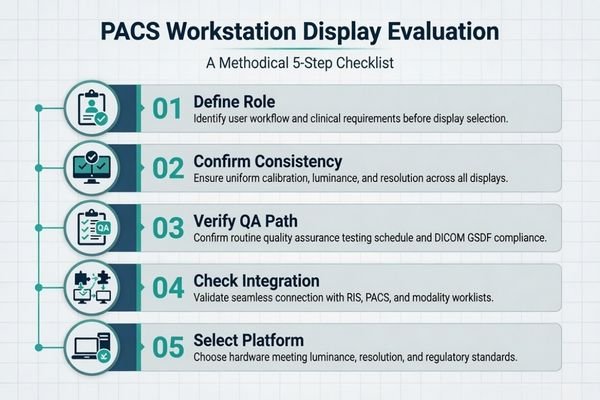
When I support a new OEM or hospital project, I usually bring the conversation back to one basic question first: what is this workstation actually expected to do? Is it for primary diagnostic reading, clinical review, reporting, or a mixed-use imaging environment? Those roles do not create the same display requirements1, and if that point stays vague, later monitor comparisons become much less meaningful.
A checklist helps keep that discussion grounded. Instead of jumping from one spec sheet to another, the team works through the actual control points of the project in order: workstation role, consistency expectations, calibration and QA, integration readiness, and later deployment conditions. In our own project reviews, that sequence usually makes the platform decision much clearer because the team stops comparing monitors in the abstract and starts comparing them against a defined reading task.
Start by Defining the PACS Workstation Role, Not by Comparing Specs
In any PACS workstation project, the first useful step is to define the workstation’s role inside the clinical workflow. I have seen many projects lose time by comparing displays too early, before anyone has clearly agreed on what the station is supposed to support.
The first item on any PACS display checklist should be to clarify the workstation’s role. Diagnostic reading, clinical review, and reporting do not carry the same display expectations, and an unclear role almost always leads to an unfocused monitor comparison.
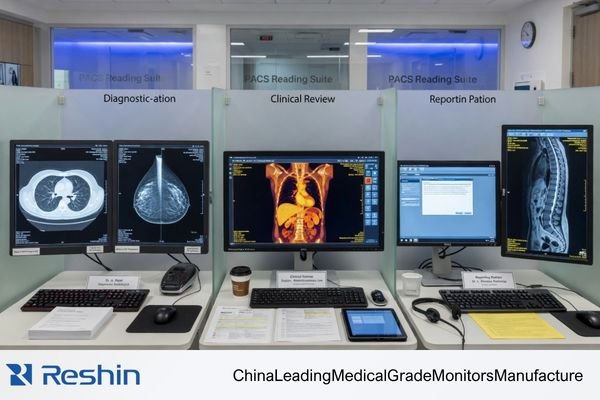
Starting with the role makes the rest of the checklist more practical. The display needs of a radiologist reading CT or MRI studies on a dual-head station are not the same as those of a clinician reviewing images alongside reports on a mixed-use workstation2. When the role is defined properly, the later technical decisions become easier to justify.
Clarifying the Reading Task and Environment
Before I spend much time on model comparison, I usually want five things to be clear: the primary reading task, whether the workstation is single- or dual-screen, which department will use it, what the ambient conditions are like, and whether this is a new deployment, a replacement cycle, or an OEM integration project. When those points are vague, even a good monitor discussion tends to drift.
Why Role Definition Prevents Unfocused Comparisons
Once the role is clear, the comparison becomes more disciplined. The question stops being “Should we buy a 3MP or a 5MP display?” and becomes “What display behavior does this exact reading task need?” That shift matters. It anchors the project in the workstation’s real purpose instead of treating display selection as a broad shopping exercise.
Grayscale Consistency and Multi-Monitor Matching Should Be Confirmed Early
From a project-risk perspective, I usually worry less about a small difference in headline specs and more about whether the display platform will stay visually aligned over time. In PACS workstation projects, inconsistency is often what creates the real workload later.
Once a PACS program expands, grayscale mismatch, luminance drift, and replacement inconsistency between monitors often become harder to manage than a small spec gap. Confirming stability and multi-monitor matching early is one of the most useful risk-reduction steps in the whole checklist.
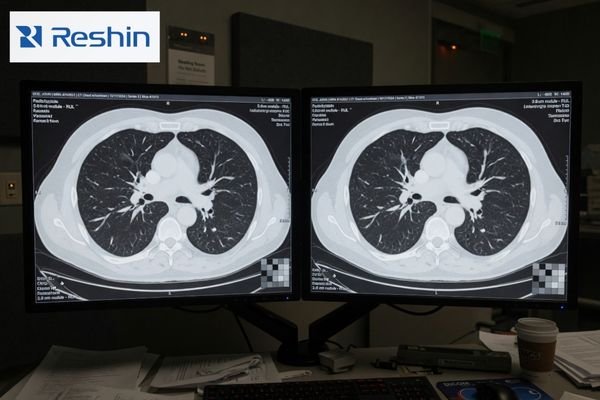
A single sample unit can usually be made to look fine in a demo. What that does not prove is whether the 20th, 50th, or later replacement unit will still behave closely enough to fit the same workstation program. In dual-head environments, even modest differences in luminance or grayscale response can become distracting. In multi-room deployment, the same issue grows into a support and QA burden.
In our own rollout reviews, we do not treat one good sample as proof that the platform is ready. We usually look more closely at four practical questions: can dual-head units stay matched, how is luminance drift handled, how are later replacement units kept aligned, and what level of batch-to-batch consistency is realistic? Those checks are much closer to the real risk in a workstation program than a minor spec advantage on paper.
This is also why I pay close attention to the supplier’s approach to consistency control. Features such as built-in calibration support, luminance stabilization, and tighter multi-unit matching are not just product extras. They are part of what makes a PACS imaging workstation integration project easier to manage across pilot, rollout, and later replacement.
DICOM, Calibration, and QA Path Must Be Practical, Not Just Theoretical
In PACS workstation projects, I often remind buyers that simply seeing “supports DICOM” on a specification sheet is not enough. The more important question is whether there is a workable and sustainable path for calibration and QA after the workstation is deployed.
A useful checklist goes beyond asking if a monitor supports DICOM. It asks how calibration is managed, whether QA can be automated, how luminance stability is controlled, and whether results remain traceable over time. A display becomes more valuable when its performance can still be verified later, not just described on day one.
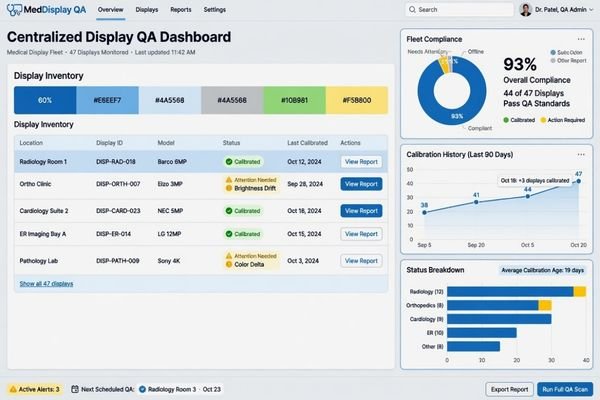
Once a display enters the PACS workflow, its real value depends on how manageable it remains. That is why I usually want the project team to spell out who calibrates the displays, how often checks are performed, how drift is detected, and how results are logged. If those answers are vague, then “supports DICOM” does not help as much as people think.
The table below shows the difference between a theoretical QA path and a practical one.
| Checklist Item | Theoretical Approach (High Risk) | Practical Approach (Lower Risk) |
|---|---|---|
| DICOM Compliance | A “Yes” checkbox on a spec sheet based on factory settings. | Verified adherence to GSDF with a clear field-level calibration path. |
| Calibration | Requires manual periodic checks with an external photometer, which are often delayed or skipped. | Uses a built-in front sensor or a defined routine for scheduled calibration3 with less manual burden. |
| Luminance Stability | Relies on the panel’s inherent stability and is only checked when complaints appear. | Uses an active stabilization method and a more structured brightness-control path. |
| QA Traceability | No central record; compliance is assumed unless a visible problem appears. | Results are logged and can be followed through centralized QA management. |
On our side, we usually separate this into two parts: first, whether the display can be calibrated to the intended grayscale target, and second, whether the team will still be able to confirm that condition later without creating excessive manual work. That second part is where many workstation projects either become manageable or slowly become fragile.
Workstation Compatibility and Integration Readiness Matter More Than Many Buyers Expect
In both OEM and hospital projects, I treat workstation compatibility as its own checklist item. Many PACS deployment issues do not start with image quality. They start with integration details that were never fully confirmed.
Many PACS workstation problems originate not from image quality itself, but from unconfirmed integration details. Interface types, GPU behavior, scaling logic, physical mounting, and documentation all affect whether a display fits smoothly into the existing workflow.
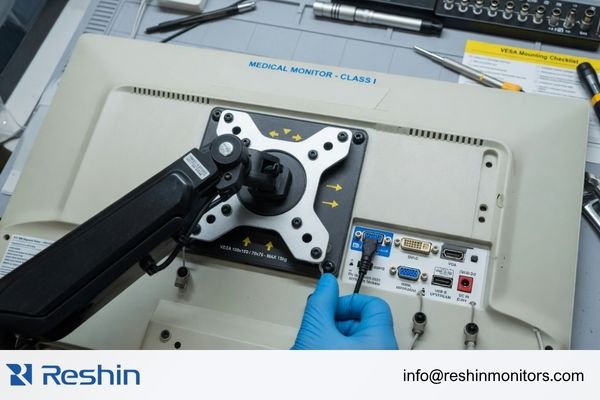
A display is only one part of a larger chain that includes the workstation PC, graphics output, PACS viewer behavior, desk or arm mounting, and the practical setup used by the department. If one of those pieces is not checked early enough, the deployment becomes harder than it needed to be.
Verifying the Hardware and Software Chain
The first part of the compatibility check is the signal and software path. The display inputs have to match the GPU outputs in a reliable way, and the viewing software has to behave correctly with the display’s native resolution, aspect ratio, and scaling conditions. If you are working through how PACS affects radiology monitor workflows, this is exactly where many projects start to show their hidden differences.
Confirming Physical and Documentation Fit
The second part is the physical and documentation fit. For OEM projects, I usually want interface documentation, mechanical dimensions, mounting details, and later batch continuity to be confirmed earlier because those items affect repeatability in production and integration. For hospital projects, the more immediate focus is often GPU fit, PACS viewer behavior, desk or arm installation, and how easy the display will be to replace later without disturbing the workstation setup. In both cases, these details are easy to underestimate until they start causing delays.
Different PACS Workstation Priorities Naturally Lead to Different Display Platforms
This section is not meant to be a product ranking. The point is to show that once the checklist is clear, the platform choice usually becomes more logical on its own. Different workstation priorities naturally lead to different display platforms.
The table below works better as a workflow map than as a product list.
| Workstation Priority / PACS Scenario | Usage Pattern | Display Requirements | Recommended Model | Key Integration Considerations |
|---|---|---|---|---|
| Primary Grayscale PACS Reading | Diagnostic reading of CT, MRI, DR, and other grayscale-focused modalities. | Stable DICOM-oriented grayscale behavior, luminance stability, and QA-friendly workflow fit. | MD33G | Best matched to dual-head or primary grayscale workstation deployment where repeatable grayscale behavior and later consistency matter most. |
| Mixed-Task Review (Color & Grayscale) | Workstations handling both DICOM-oriented grayscale review and color-based image or report tasks. | Reliable dual-mode behavior for grayscale and color without creating awkward workflow switching. | MD32C | More suitable when workstation fit, mode-switching logic, and practical PACS workflow flexibility all matter together. |
| Higher-Detail Grayscale Reading | Reading environments that place greater weight on finer grayscale differentiation and stricter display consistency. | Higher-detail grayscale performance, stronger uniformity expectations, and more demanding QA alignment. | MD52G | Better suited to high-demand grayscale use where replacement continuity, QA expectations, and long-term stability need closer attention. |
FAQ About PACS Workstation Display Checklist for OEM and Hospital Projects
What should be confirmed first in a dual-screen PACS workstation project?
I usually recommend confirming the reading role and the matching requirement between the two screens before comparing size or price. In dual-screen projects, the earliest practical risks usually come from grayscale mismatch, luminance differences, and later replacement inconsistency.
Are the checklist priorities the same for OEM projects and hospital projects?
Not exactly. OEM projects usually focus more on baseline definition, integration readiness, documentation, and batch continuity. Hospital projects tend to focus more on workstation fit, ongoing QA management, and replacement continuity. Both, however, place a high value on grayscale stability and deployment control.
Should buyers compare 2MP, 3MP, and 5MP first?
I would not make resolution tier the first step. A better sequence is to confirm the workstation role, the reading task, grayscale expectations, and workflow consistency first. After that, the 2MP, 3MP, or 5MP decision becomes much more grounded.
Why can one sample look fine while a later rollout still becomes difficult?
Because many PACS workstation problems appear at scale rather than at the sample stage. Multi-monitor matching, later batches, replacement units, and lifecycle changes are usually where the real difficulty starts. One sample proves a local result, not a rollout result.
A Good PACS Workstation Checklist Reduces Risk Before Deployment Starts
A good PACS workstation display checklist helps teams confirm the reading role, consistency target, QA path, integration conditions, and rollout expectations before deployment begins. That is why the checklist matters. It gives the project a structure before the hardware decision hardens.
For OEM teams and hospital project owners, the value is not only in selecting the right display. It is in making the whole workstation program easier to control through pilot build, validation, multi-site rollout, and later replacement. If your project includes dual-head reading, multi-room deployment, or OEM workstation integration, the next step is usually to review those conditions with a PACS monitor manufacturer before locking the display platform.
✉️ info@reshinmonitors.com
🌐 PACS Monitor Manufacturer
-
"Monitor displays in radiology: Part 2 – PMC – NIH", https://pmc.ncbi.nlm.nih.gov/articles/PMC2765178/. The American College of Radiology specifies that primary diagnostic displays require higher luminance, contrast ratio, and resolution thresholds compared to secondary clinical review monitors. Evidence role: definition; source type: institution. Supports: Those roles do not create the same display requirements.. Scope note: Local regulatory or vendor-specific standards may differ. ↩
-
"Clinical Review Monitors: Transform Your Healthcare Facility", https://www.agneovo.com/en_us/insight/clinical-review-monitors-guide?srsltid=AfmBOooDdErzSc1HmPPKdu8JfKoxRh3zxrsdAGiKEeg6KdOe8kXsqIfz. American College of Radiology guidelines recommend higher luminance, resolution, and calibration standards for diagnostic CT/MRI interpretation on dual‐head workstations compared to general clinical review monitors. Evidence role: expert_consensus; source type: institution. Supports: The display requirements differ between radiologist CT/MRI reading stations and mixed‐use clinical review workstations. Scope note: Applies to ACR guidelines in the U.S.; other regions may have different specifications. ↩
-
"Comparison between DICOM-calibrated and uncalibrated consumer …", https://pmc.ncbi.nlm.nih.gov/articles/PMC4628499/. AAPM Task Group 18 recommends using integrated front‐sensor systems or automated routines to perform regular luminance and grayscale calibrations, which can reduce the need for manual interventions. Evidence role: general_support; source type: institution. Supports: Uses a built-in front sensor or a defined routine for scheduled calibration with less manual burden. Scope note: implementation details and effectiveness can vary across different display models ↩